Showing posts with label Photoshop. Show all posts

Tuesday, November 1, 2016

Download Hi-Res Files from USDA-ARS Website

When you download images from the USDA Agricultural Research Website, be sure you're getting the largest, highest-resolution image you can get by following these steps:

Select your image

Click on "300 dpi Download/Bajar" button in upper right.
(Do not download the preview image here.)

Click on "Download image" at bottom of form.
Filling out the form is not required.

It will take a minute for the image to load in your browser window. Click "OK."

When the image appears in your browser,
right click on it to "Save Image As"
or drag and drop to your desktop.

Wednesday, October 19, 2016

Image Editing and Photo Manipulation


Some editing of techniques are considered acceptable, for example enhancement or correction of color or contrast. If someone's hair is out of place on an otherwise good photograph, one might argue that it is acceptable to edit that hair.

We generally understand that advertisements are doctored in order to present idealized beauty and absolute perfection – such as in the Dove Evolution ad or Julia Roberts' in this Lancome ad. Take a close look at those models in ads for beauty products. Could anyone possibly have skin that flawless? Most likely not. The author of Astropix.com puts it beautifully:
"Today's viewers however, are very sophisticated visually. They know full well that anything, literally, can be done to an image. They have seen dinosaurs and aliens portrayed with lifelike realism in the movies. Problems arise though because viewers expect to be fooled in the movies, and tend to get upset and feel betrayed when they are fooled in an allegedly factual medium such as the news business."
Photos composited and manipulated in Photoshop (Wikipedia)


Let's get an introduction to image editing and photo manipulation from Wikipedia: 
Photo manipulation is the application of image editing techniques to photographs in order to create an illusion or deception after the original photographing took place.[1] A mere enhancement or correction is known as retouching.
Types of digital photo manipulation

In digital editing, photographs are usually taken with a digital camera and input directly into a computer. Transparencies, negatives or printed photographs may also be digitized using a scanner, or images may be obtained from stock photography databases. With the advent of computers, graphics tablets, and digital cameras, the term image editing encompasses everything that can be done to a photo, whether in a darkroom or on a computer. Photo manipulation is often much more explicit than subtle alterations to color balance or contrast and may involve overlaying a head onto a different body or changing a sign's text, for examples. Image editing software can be used to apply effects and warp an image until the desired result is achieved. The resulting image may have little or no resemblance to the photo (or photos in the case of compositing) from which it originated. Today, photo manipulation is widely accepted as an art form.
There are several subtypes of digital image-retouching:
Technical retouching Manipulation for photo restoration or enhancement (adjusting colors / contrast / white balance (i.e. gradational retouching), sharpness, noise, removing elements or visible flaws on skin or materials, ...)
Creative retouching Used as an art form or for commercial use to create more sleek and interesting images for advertisements. Creative retouching could be manipulation for fashion, beauty or advertising photography such as pack-shots (which could also be considered inherently technical retouching in regards to package dimensions and wrap-around factors). One of the most prominent disciplines in creative retouching is image compositing. Here, the digital artist uses multiple photos to create a single image. Today, 3D computer graphics are used more and more to add extra elements or even locations and backgrounds. This kind of image composition is widely used when conventional photography would be technically too difficult or impossible to shoot on location or in studio.
Photo manipulation alters the content of the images in a devious manner. It becomes difficult for the audience to differentiate between a manipulated image and reality. But Photoshop's popularity has proven to be divisive. While some laud it for its ability to allow subjects to look their best in a photograph, others see it as a vehicle for feeding our culture's desire for ultimate perfection. Manipulated images are created to deceive the audiences and form their understanding on how the media presents everything with perfection.[11] Therefore, with digital democratization[vague] increasing at a rapid rate it[vague] is creating problems. Since more people have access to technology it[vague] creates curiosity in the readers mind when they see an image published in newspapers or magazines. The reader begins to question the ethics of the publication which results in a debate. Photo images were considered as a reliable source and were known as a medium of communication to present the truth to the media.[2]


Fraudulent Photography, aka "Fauxtography"

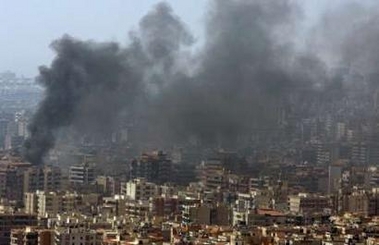
This photograph is a dramatic example of deceptive photo manipulation or "fauxtography" — a fraudulent photo designed to deceive its viewers.


In August of 2006, Reuters news agency released this photo which had been altered to appear more sensational than the original. The photographer, Adnan Hajj, had used the clone stamp tool to make a column of smoke appear darker and larger than in the original, unretouched photo. It created an outrage — not only in the media community but also by news consumers around the globe — which resulted in the pulling of all Hajj's photographs from Reuters' services, and the firing of Hajj and his editor. (Read more here.)

Further Reading

See more images and read about the ethics of photo fraud at the links below.

A discussion and results of a readers' poll about wildlife photography and objectivity:
http://www.audubonmagazine.org/articles/nature/nature-photography-objectivity-manipulation-and-ethics?page=show

An in-depth look at the doctoring of news photos, specifically Reuters' Beirut photos:
http://littlegreenfootballs.com/article/21956_Reuters_Doctoring_Photos_from_Beirut

More analysis of Reuter's photo scandals:
http://www.zombietime.com/reuters_photo_fraud/

On the ethics of digital photo manipulation:
http://www.astropix.com/HTML/J_DIGIT/ETHICS.HTM

And finally, a humorous take from TheOnion.com:
http://www.theonion.com/articles/congress-passes-natural-disaster-digitalenhancemen,4252/

Indentifying Manipulated Photos

Tired of being fooled by manipulated or "Photoshopped" photos? Check out these selections to learn top tips to spot the spoofs:

poynter.org

http://www.poynter.org/latest-news/regret-the-error/173387/three-ways-to-spot-if-an-image-has-been-manipulated/

http://www2.uncp.edu/home/acurtis/Courses/ResourcesForCourses/Photojournalism/PhotoManipulation.html

http://lifehacker.com/5644259/how-to-detect-a-photoshopped-image

http://www.technologyreview.com/news/409754/identifying-manipulated-images/


Monday, October 3, 2016

Adobe Bridge


Adobe® Bridge, provided with Adobe Creative Cloud, or Adobe Creative Suite® 6 and CS5 components, lets you organize the assets you use to create content for print, web, and video. Adobe Bridge keeps native Adobe files (such as PSD and PDF) as well as non‑Adobe files available for easy access. You can drag assets into your layouts, projects, and compositions as needed, preview files, and even add metadata (file information), making the files easier to locate.


Adobe Bridge is a great file management program which you might find helpful if you have a large number of photos to organize. In addition to organization, you can label, prioritize, batch process and share files. Of particular interest is Bridge's integration with some of Photoshop's automated features (Contact Sheet and Photomerge) and photo adjustment with Camera Raw.

File browsing
From Adobe Bridge you can view, search, sort, filter, manage, and process image, page layout, PDF, and dynamic media files. You can use Adobe Bridge to rename, move, and delete files; edit metadata; rotate images; and run batch commands. You can also view files and data imported from your digital still or video camera. See View and manage files.


Mini Bridge
Browse and manage assets using the Mini Bridge panel in Adobe Photoshop®, Adobe InDesign®, and Adobe InCopy®. Mini Bridge communicates with Adobe Bridge to create thumbnails and keep files up-to-date. Mini Bridge lets you work with files more easily within the host application. See Mini Bridge and watch the short video introduction.


Camera raw
If you have Adobe Photoshop, Adobe Lightroom, or Adobe Creative Suite installed, you can open camera raw files from Adobe Bridge and save them. You can edit the images directly in the Camera Raw dialog box without starting Photoshop or Lightroom, and copy settings from one image to another. If you don’t have Photoshop installed, you can still preview the camera raw files in Adobe Bridge. See Work with Camera Raw.

Color management
You can use Adobe Bridge to synchronize color settings across color-managed Adobe Creative Suite components. This synchronization ensures that colors look the same in all Adobe Creative Suite components. See Manage color.

Wednesday, September 28, 2016

Color Me Happy

Light, as some of you science folks probably already know, is a pretty tricky thing. It is often described as waves or particles or radiation or energy. We see it reflected off the surfaces of objects or projected from computer monitors. Light is received by our optic nerves and transmitted to the brain which interprets it. Different wavelengths of visible light are interpreted as different colors. While physics or physiology are important, in this class we're mostly concerned with how we interpret and use color in our layouts and designs.

Thevisible spectrum (above) can be visualized as a rainbow: red, orange, yellow, green, blue, violet. NASA image, Wikimedia Commons
We see color that is reflected from an object. If all colors of the visible spectrum are reflected, we perceive the object as white (all the colors of the spectrum combine to make white light). If only the red light waves are reflected, we perceive the object to be red. If little or no light is reflected, we perceive the object to be black. Reflected light is described as subtractive (if you mix colors together, color gets absorbed, subtracted or taken away.) Remember mixing all your finger paints to make that yukky brown? That's subtractive.


Subtractive Color Model (RYB)


Stated above, but we'll repeat here for emphasis: We see color that is reflected from an object. If all colors of the visible spectrum are reflected, we perceive the object as white (all the colors of the spectrum combine to make white light). If only the red light waves are reflected, we perceive the object to be red. If little or no light is reflected, we perceive the object to be black. Reflected light is described as subtractive (if you mix colors together, color gets absorbed, subtracted or taken away.) Remember mixing all your finger paints to make that yukky brown? That's subtractive.


The Visible Spectrum and a simple RYB (Red-Yellow-Blue) Color Wheel

Another RYB Color Wheel,
"Primary, secondary, and tertiary colors of the RYB color model" —Wikipedia
 See more color wheels here.


Color Relationships (RYB)


Primary colors are red, blue and yellow. Think of them as prime numbers. They are as simple as it gets. The secondary colors are a mixture of two primary colors: red + blue = violet. Equal mixtures of primaries (or secondaries) makes a neutral(ish) gray.


RYB Color Model -- Primaries, Secondaries and Neutral

Now refer back to the color wheel. Colors opposite each other on the color wheel are considered to be complementary*. They have nothing in common. For instance red is complementary to green, green is made of the primary colors blue and yellow which have nothing in common with red. Complementary colors seem to vibrate when placed next to each other and have an energizing and sometimes shocking effect on a color scheme.

Colors near each other (adjacent) on the color wheel are called analogous. They are harmonious color combinations because they are similar or have something in common. For example, violet, blue and green are analogous because they have blue in common.

Another way to think of color is in terms of temperature. Warm colors are red, orange and yellow. Cool colors are green, blue and violet.

Another word for color is hue. If a color is fully saturated, it is at its most intense. If it is desaturated, it is less intense. "Baby blue" is less saturated than "cobalt blue."

A tint is a color that is a color that has been lightened, as if it had white added to it. Pink is a tint of red. A shade is a color that is darkened. "Navy blue" is a shade of blue.

White and black are neutrals. White reflects all the wavelengths of light, and black absorbs all. Grays can be neutral if composed of equal amounts of color. Sometimes grays can lean toward a color, and be considered warm or cool accordingly (blue-gray, for example.)

Here is Photoshop's color picker with examples of saturated and desaturated colors, tints, shades and neutrals:

Photoshop's Color Picker

Wikipedia explains this better than I can:
In colorimetry and color theory, colorfulness, chroma, and saturation are related but distinct concepts referring to the perceived intensity of a specific color. Colorfulness is the difference between a color against gray. Chroma is the difference of a color against the brightness of another color which appears white under similar viewing conditions. Saturation is the difference of a color against its own brightness. …

A highly colorful stimulus is vivid and intense, while a less colorful stimulus appears more muted, closer to gray. With no colorfulness at all, a color is a “neutral” gray (an image with no colorfulness in any of its colors is called grayscale). With three attributes—colorfulness (or chroma or saturation), lightness (or brightness), and hue—any color can be described.

Saturation is one of three coordinates in the HSL and HSV color spaces. Note that virtually all computer software implementing these spaces use a very rough approximation to calculate the value they call "saturation," such as the formula described for HSV and this value has little, if anything, to do with the description shown here.
The saturation of a color is determined by a combination of light intensity and how much it is distributed across the spectrum of different wavelengths. The purest color is achieved by using just one wavelength at a high intensity, such as in laser light. If the intensity drops, so does the saturation. To desaturate a color in a subtractive system (such as watercolor), you can add white, black, gray, or the hue's complement.


Colors also have cultural, social and emotional baggage. There was a time when you would seldom see anything but red, white and blue used in political advertising because of the patriotic sentiment that the designers are trying to evoke. Likewise, blue is an unappetizing color so it might be used judiciously in food packaging. On the other hand, reds, yellow, browns and greens — colors which we readily associate with edible items — are frequently employed in food advertising and packaging. Think about that the next time you have a blue M&M or sports drink.

Colors are subject to trends, too. Every so often fashionistas elevate certain colors while others fall out of favor. I wouldn't expect to see a trendy new house appointed with avocado green carpet and harvest gold appliances like those of my 1970s childhood.


Additive Color Model (RGB)

Many of us -- artists, painters, commercial printers, designers of printed products, and so forth -- work with the subtractive (RYB) color model described above. As users of computers and mobile devices, we need to grasp RGB representation (in the additive color model) and learn to understand its relationship to RYB. 
If we project colored light, we will discover that it behaves differently than reflected light (paint, for instance). In this case, the prime units of color are red, green and blue. Your TV screen and computer monitor use this scheme to represent colors and thus pictures. Grab a magnifying glass and put it up to the monitor and you'll see. (Really! It's cool!) 

This model of representing color is known as RGB.
RGB Color Model -- Primaries, Secondaries and Neutral
When red, green and blue light (RGB) is mixed equally at full intensity it creates white light. This is known as additive color. By adding the red, green and blue light together you create white light, the full visible spectrum. On the other hand, if you take light away, it becomes black --- the absence of light.

Notice that the combinations of red, blue and green don't make the same colors as you might expect them to based on the subtractive (RYB) color wheel. Red and green light mixes to make yellow light.


Printing Color Images (RYB)


Full color images are printed by what's known as four color process (or process color). Generally, just four colors of ink are used to approximate the colors we see in the visible spectrum: Cyan (blue), Magenta (red), Yellow and Black or CMYK (K = "key" or black). There are special instances where additional colors can be added during printing.

A full color image, such as the one at right is separated into the four colors below for process printing. These separations are made into negatives which in turn are used to make printing plates. Each of the plates is used to print its corresponding color, and the colors are registered or aligned so that the colors match up and create the "full color" image we see on the page.

CMYK Composite image

Below is a representation of each separation of the full color picture above. As each ink is printed on the page, the colors combine to create the full color image. Think back to the color wheel and the primary colors... blue...red...yellow.... Since there is a lot of green in the foliage, it's natural to see lots of yellow and blue in that area. But what you might find enlightening is the amount of magenta and black there too. These colors help make shadows and highlights and give depth and richness to the color of the foliage.


CMYK Separations: Cyan, Magenta, Yellow, Black

Process printing inks are semi-transparent which means that they allow some of the other inks to show through. Inks are also printed as halftones (see below), so that some of the paper will show through too.

And even though we talk about the color building up, keep in mind that it's really "subtracting" light. Dark colors (created by densely printed inks) absorb more light rays than they reflect and thus subtract light that your eyes would otherwise see.


How process color builds up to appear to be "full color"


Halftones**


Halftone screens consist of dots that control how much ink is deposited at a specific location. Varying their size and density creates the illusion of variations of gray or continuous color. For a process color image (four color or full color), four halftone screens are used: cyan, magenta, yellow, and black-one for each ink used in the printing process.

Three examples of color halftoning with CMYK separations.
From left to right: The cyan separation, the magenta separation, the yellow separation, the black separation, the combined halftone pattern and finally how the human eye would observe the combined halftone pattern from a sufficient distance. (Wikipedia)

In traditional print production, a halftone is produced by placing a halftone screen between a piece of film and the image and then exposing the film. Digital halftoning uses a raster image or bitmap within which each pixel which may be on or off, ink or no ink.

Get out that magnifying glass again and take a close look at newspaper and magazine photos to see the tiny dots which create the "photo." Note also how high quality glossy magazines use a finer screen (dots) and newspapers use a coarse screen. This is because of the type of paper, printing processes and machinery unique to each medium.

Grayscale image, halftone screen with black ink.
Light areas have smaller dots, dark areas have larger dots.
CMYK color image, halftone screens with process ink
at different screen angles; correctly registered dots form rosettes.

Spot Color (Pantone or PMS Colors)


Sometimes you might want to just use a single color of ink, or perhaps black plus one color called a spot color. You'll be specifying a Pantone or PMS (Print Matching System) color. Printers have books of color swatches from which to select these colors. These colors come either ready-mixed or are custom-mixed by the printer. 

Pantone colors libraries are available in InDesign, Illustrator and Photoshop. These libraries, as well as specific CMYK colors, allow designers and printers to speak the same language because what is baby blue to you might be a horse of a different color to your printer.

Models vs Modes of Color


Until now we've been discussing color models. Models are methods of defining color, whereas modes are particular to Photoshop, specifically, how the application defines color. Here is a list of Photoshop's modes:
  • Bitmap
  • Grayscale
  • Duotone
  • Indexed Color
  • RGB Color
  • CMYK Color
  • Lab Color
  • Multichannel
In the case of RGB and CMYK, the color models share the same name as the color modes. In all other cases, the modes are specific to Photoshop. In our work, we will concern ourselves with only these modes:
  • Bitmap - uses only two colors, black and white, to represent images. (Note: This is not the bitmap file format ".bmp" you might see generated from some PC applications.)
  • Grayscale - uses 256 shades of gray.
  • RGB - based on the primary colors of red, green and blue. This is how your monitor displays colors and how scanners scan images. After a picture is scanned, it needs to be converted to CMYK for printing.
  • CMYK - based on the Cyan, Magenta, Yellow and Black process printing model. This is the color mode used for printing color images.
InDesign and Illustrator create images in either RGB or CMYK modes.

Color gamuts (Photoshop)‡


A gamut is the range of colors that a color system can display or print. 
The term gamut was adopted from the field of music, where it means the set of pitches of which musical melodies are composed ….
In color theory, the gamut of a device or process is that portion of the color space that can be represented, or reproduced. Generally, the color gamut is specified in the hue–saturation plane, as a system can usually produce colors over a wide intensity range within its color gamut; for a subtractive color system (such as used in printing), the range of intensity available in the system is for the most part meaningless without considering system-specific properties (such as the illumination of the ink).
When certain colors cannot be expressed within a particular color model, those colors are said to be out of gamut. For example, while pure red can be expressed in the RGB color space, it cannot be expressed in the CMYK color space; pure red is out of gamut in the CMYK color space.
A device that is able to reproduce the entire visible color space is an unrealized goal within the engineering of color displays and printing processes. While modern techniques allow increasingly good approximations, the complexity of these systems often makes them impractical.
While processing a digital image, the most convenient color model used is the RGB model. Printing the image requires transforming the image from the original RGB color space to the printer's CMYK color space. During this process, the colors from the RGB which are out of gamut must be somehow converted to approximate values within the CMYK space gamut. Simply trimming only the colors which are out of gamut to the closest colors in the destination space would burn the image. There are several algorithms approximating this transformation, but none of them can be truly perfect, since those colors are simply out of the target device's capabilities. This is why identifying the colors in an image which are out of gamut in the target color space as soon as possible during processing is critical for the quality of the final product.


The visible spectrum of colors (those able to be seen by the human eye) is wider than the gamut available in any color model:


Color gamuts: A. Lab color gamut
B. RGB color gamut C. CMYK color gamut

Among the color models used in Photoshop, Lab has the largest gamut, encompassing all colors in the RGB and CMYK gamuts. Typically, RGB gamuts contain the subset of these colors that can be viewed on a computer or television monitor (which emits red, green, and blue light). Therefore, some colors, such as pure cyan or pure yellow, can't be displayed accurately on a monitor.  

CMYK gamuts are smaller, consisting only of colors that can be printed using process-color inks. When colors that cannot be printed are displayed on-screen, they are referred to as out-of-gamut colors — that is, outside of the CMYK gamut. (See Identifying out-of-gamut colors, Photoshop.)

A comparison of RGB and CMYK color spaces. The image demonstrates the difference between the RGB and CMYK color gamuts. The CMYK color gamut is much smaller than the RGB color gamut, thus the CMYK colors look muted. If you were to print the image on a CMYK device (an offset press or maybe even a ink jet printer) the two sides would likely look much more similar, since the combination of cyan, yellow, magenta and black cannot reproduce the range (gamut) of color that a computer monitor displays. This is a constant issue for those who work in print production. Clients produce bright and colorful images on their computers and are disappointed to see them look muted in print. (An exception is photo processing. In photo processing, like snapshots or 8x10 glossies, most of the RGB gamut is reproduced.)
— http://en.wikipedia.org

:: :: ::

*com·ple·men·ta·ry
Pronunciation: "käm-pl&-'men-t(&-)rE
Function: adjective
1 : relating to or constituting one of a pair of contrasting colors that produce a neutral color when combined in suitable proportions
2 : serving to fill out or complete
3 : mutually supplying each other's lack
4 : being complements of each other
5 : characterized by the capacity for precise pairing of purine and pyrimidine bases between strands of DNA and sometimes RNA such that the structure of one strand determines the other
- com·ple·men·ta·ri·ly /-'men-t(&-)r&-lE, -(")men-'ter-&-lE/ adverb
- com·ple·men·ta·ri·ness /-'men-t(&-)rE-n&s/ noun
- complementary noun

com·pli·men·ta·ry
Pronunciation: "käm-pl&-'men-t(&-)rE
Function: adjective
1 a : expressing or containing a compliment b : FAVORABLE
2 : given free as a courtesy or favor
- com·pli·men·ta·ri·ly /-'men-t(&-)r&-lE, -(")men-'ter-&-lE/ adverb

source: http://m-w.com


** Adapted from Adobe Photoshop Help.

‡
Gamut adapted from Adobe Photoshop 7.0 Help


More about Color on Wikipedia (try to not get lost)
What would you say about the color scheme of this logo?
What relationships do these colors have to each other?
Cool? Warm? Complementary? Analogous?
 

Wednesday, September 21, 2016

Resolution, Resizing and Resampling

Computer graphics fall into two main categories: bitmap and vector images. Let's review the difference between the two. Understanding this will help as you create and edit digital images.

Bitmap and vector review


Photoshop and other paint and image-editing programs generate bitmap images, also called raster images. Bitmap images use a grid (the bitmap or raster) of small squares known as pixels to represent images. Each pixel is assigned a specific location and color value. For example, a bicycle tire in a bitmap image is made up of a mosaic of pixels in that location. When working with bitmap images, you edit pixels rather than objects or shapes.


Rasterizing is a process of converting vector images to bitmap images.


A bitmap image is resolution-dependent meaning that it contains a fixed number of pixels. Bitmap images are the best choice for representing subtle gradations of shades and color — for example, in photographs or painted images — to represent its image data. As a result, a bitmap image can lose detail and appear jagged if viewed at a high magnification on-screen or printed at too low a resolution.


High resolution images offer you the best quality for printing photos. Examine a photo's image size for its dimensions and resolution before you place it in your layout and enlarge it. (To find this information in Photoshop, go to Image Menu > Image Size.) See below for a comparision of a low resoluion and a high resolution image enlarge four times (400%).


Low Resolution
72 dpi enlarged 400%


High Resolution
300 dpi enlarged 400%


Drawing programs such as Adobe Illustrator create vector graphics, made of lines and curves defined by mathematical objects called vectors. Vectors describe graphics according to their geometric characteristics. For example, a bicycle tire in a vector graphic is made up of a mathematical definition of a circle drawn with a certain radius, set at a specific location, and filled with a specific color. You can move, resize, or change the color of the tire without losing the quality of the graphic.


A vector graphic is resolution-independent -- that is, it can be scaled to any size and printed on any output device at any resolution without losing its detail or clarity. As a result, vector graphics are the best choice for type (especially small type) and bold graphics that must retain crisp lines when scaled to various sizes (logos, for example). Because computer monitors represent images by displaying them on a grid, both vector and bitmap images are displayed as pixels on-screen.


Resolution, Resizing and Resampling

  • Resizing does not change the file size, but changes the relationship of the file dimensions and dpi. You can resize the image to specified pixel dimensions or to a percentage of the original size.
  • Resampling changes the pixel dimensions (changed the numbers of pixels in the file) and thus the file size -- see below.


Resizing


Start with a 1x1-inch file with a resolution of 300 dpi (Fig. A). Its file size is 264k.


Fig. A


Increasing the width and height dimensions but not resampling leave the file and data at its original size of 264k (Fig. B).

Fig. B


Resampling


Changing the pixel dimensions (and therefore display size) of an image is referred to as resampling.


When you downsample (or decrease the number of pixels), information is deleted from the image. You can also upsample, or increase the number of pixels, but it doesn't necessarily improve the quality of the image. When Photoshop upsamples it interpolates new pixels based on existing data.


Downsampling


Start with that same 1x1-inch file with a resolution of 300 dpi at 264k (see Fig. A above). Constraining proportions and resampling the image to 72 dpi will decrease the file size to 15.2k (Fig. C). A lot of file information was lost in this process.


Fig. C


Upsampling
When you resample up (or increase the number of pixels by either changing dimensions or resolution), new pixel information is added based on color values of existing pixels. Changing pixel dimensions  affects the size of an image and also can affect its quality.


Begin with a 1.5x1.5 inch file with a resolution of 72 dpi.


Resample (upsample) the image to 6x6 inches.


 Left, upsampled image; right, detail of upsampled image showing image quality.


Take note of the increase of file size, but not necessarily of image quality. Photoshop interpolates (inserts) new pixels for the increased size (or resolution) based on existing data. However, the image quality may not be adequate since Photoshop is essentially guessing at the new data.


To change dimensions of an image


1. In Photoshop, resize an image by choosing Image menu > Image Size.


2. To maintain the current proportions of pixel width to pixel height, select Constrain Proportions. Leave Resample Image box unchecked. Constrain the image proportions by selecting:
  • Width, to constrain proportions using the new width value.
  • Height, to constrain proportions using the new height value.
  • Percent, to constrain proportions while resizing the image by a percent value.


3. Click OK.


Read more about pixel dimensions and resolution from the experts at Adobe: http://livedocs.adobe.com/en_US/Photoshop/10.0/help.html?content=WS75D24624-A761-40b6-832E-8AB0E2383C90.html


Exerpted and adapted from Adobe Photoshop Online Help.

Tuesday, September 20, 2016

Photoshop File Formats

Photoshop's file format menu is lengthy, but don't let it intimidate you. Each option has it purpose, and knowing what what they are will keep you from becoming overwhelmed.

First, "file format" refers to how an image file is saved, and is determined by how the image is to be used. In Photoshop, when you choose "File / Save" (or "Save As" or "Save a Copy") you will see the menu below.

The end use of a file will determine the best file format choice. If you don't know what your end product will be, stick with the native Photoshop (.psd) format, then "Save As" when you figure it out. The annotated charts below discuss the most commonly used Photoshop file formats.


Common File Formats for Graphic Applications

File Format File Extension Notes
Photoshop .psd The native Photoshop format -- supports Photoshop's layers and transparency. Good option for the CS workflow.
Photoshop EPS .eps Encapsulated Postscript File -- supported by Adobe CS but not necessarily by all other graphics applications. Supports Paths, but not transparency.
PDF .pdf Portable Document Format -- a versatile cross-platform format.
TIFF .tif Tagged-Image File Format -- a cross-platform format that supports lossless compression (no image data is discarded as it is saved; see JPG below). Supports transparency, but not Paths.
Note: Photoshop, EPS, TIFF and PDF formats are supported by all Adobe Creative Suite applications.

Common File Formats Used on the Web

File Format File Extension Notes
GIF .gif Prounounced "jif" or "gif," it stands for Graphics Interchange Format. Good choice for line art or art with limited palettes, animation; supports transparent backgrounds.
JPG or JPEG .jpg Joint Photographic Group Experts File -- a good option for displaying or sharing images on the web or via email, but degrades image through "lossy" compression. Image data is discarded in order to compress file size, that is, to make the file size smaller. Each time a file is saved in jpg format it continually degrades the image.
PNG .png Portable Network Graphic. It was developed an alternative to the GIF format and supports lossless data compression and transparent backgrounds. Does not support CMYK colorspace.
Note: Choose "File / Save for Web" when saving images for use on the Internet. For more details, see Photoshop's Help menu.


Other File Formats

File Format File Extension Notes
Bitmap .bmp Windows-compatible format; lossless (loses no data when saving, unlike lossy formats such as JPG).
PCX .pcx A Windows file format.
PICT .pct A Macintosh format.
Pixar .pxr For use with high-end 3-D imaging programs.
PNG .png An alternative to GIF format. See above.
Raw .raw Saves files as a stream of bytes, good only for moving between applications and platforms. 
Scitex .sci For high-end graphics, such as super-high resolution drum scans.
Targa .tga For systems using Truevision® video board.


— Adapted and updated from: Teach Yourself Photohop 4 in 14 Days. D. Bront Davis, Steven Mulder, Carla Rose, Hayden Books, 1997.

Further reading

http://livedocs.adobe.com/en_US/Photoshop/10.0/help.html?content=WSfd1234e1c4b69f30ea53e41001031ab64-7784.html

http://www.creativepro.com/article/graphics-fundamentals-understanding-photoshop-file-formats-

http://ezinearticles.com/?Photoshop-Files-and-Formats&id=36741